My Cisco Cheatsheet
Most of the time when I learn new stuff, I need to write it down. That way my brain doesn’t forget as fast.
This is just my own personal Cisco cheatsheet. Don’t know if every description of a command is correct. Might change over time as I add, edit or delete sections… It’s not done yet, don’t know if it will ever be truly finished…
Cisco Catalyst Switches
Analyse
Terminal Paging
term[inal] l[ength] 0           ! Disables terminal paging
term[inal] l[ength] 20          ! Sets the terminal paging to 20 lines
Filter command output
sh[ow] mac address-table | i[nclude] Gi1/0/2 		! Only include the lines that have 'Gi1/0/2' on it
sh[ow] mac address-table | b[egin] Gi1/0/2 			! Start at the first line that has 'Gi1/0/2' on it and show every line after that
sh[ow] mac address-table | e[xclude] Gi1/0/2		! Show all output except the lines that have 'Gi1/0/2' on it
sh[ow] mac address-table | c[ount] Gi1/0/2 			! Count the amount of lines that have 'Gi1/0/2' on it
sh[ow] running-config | s[ection] aaa               ! Only show the AAA section of the running-config
Interface Counters
sh[ow] int[erface] counters                         ! Show all interface counters
sh[ow] int[erface] counters | i Gi1/0/2             ! Show interface counters for Gi1/0/2
clear counters                                      ! Clear all interface counters
clear counters int Gi1/0/2                          ! Clear interface counters for Gi1/0/2
Interface configuration
sh[ow] run[ning-config] int[erface] Gi1/0/2         ! Show the current running configuration of that interface
sh[ow] derived int[erface] Gi1/0/2                  ! Show the derived interface configurations (useful when applying CoA)
Hardware
CPU
sh[ow] proc[esses] cpu sort[ed]
sh[ow] proc[esses] cpu history
Memory
sh[ow] memory sum[mary]
sh[ow] proc[esses] mem[ory] sort[ed]
Temperature
sh[ow] env[irnment] temp[erature] status
Power
sh[ow] env[ironment] pow[er]                              ! Shows the power supplies of the stack master
sh[ow] env[ironment] pow[er] all                          ! Shows the power supplies of all the stack members
sh[ow] env[ironment] pow[er] switch <stack member nr>     ! Shows the power supplies of a specific stack member
Licensing
Licensing information
sh[ow] license all
sh[ow] license sum[mary]
Add switch to smart account
conf t
 ip name-server <dns-server(s)>
 call-home
  http resolve-hostname ipv4-first
  contact-email-addr <contact email>
  profile CiscoTAC-1
   active
  exit
 exit
 ip http client source-interface vlan <management vlan>
 no license smart privacy hostname
 license smart transport callhome
 service call-home
end

license smart trust idtoken <token> all force
Change the bootlevel of the switch (to network-advantage with addon dna-advantage)
configure terminal
 license boot level network-advantage addon dna-advantage
end
PoE
PoE Port status
sh[ow] power inline
PoE port config auto
conf[igure] term[inal]
 int[erface] <interface>
  power inline auto
end
PoE port config static
conf[igure] term[inal]
 int[erface] <interface>
  power inline static
  power inline static max <4000-30000 (milli-watts)>
end
Activate PoE High Availability (keeps PoE enabled even when the switch is rebooting, as long as the switch has power)
conf[igure] term[inal]
 int[erface] <interface>
  power inline port perpetual-poe-ha
end
SFP
Switch Stack
Filesystem
Macro / script
Cisco Catalyst Wireless Controller
WLC
Health Checks
show redundancy
show redundancy switchover history

show chassis
show chassis rmi

show processes cpu sorted
show processes cpu history

show memory
show processes memory
Redunancy
show redundancy
show redundancy switchover history
show chassis
show chassis rmi
Change primary node
redundancy force-switchover
Radio Active (RA) Traces
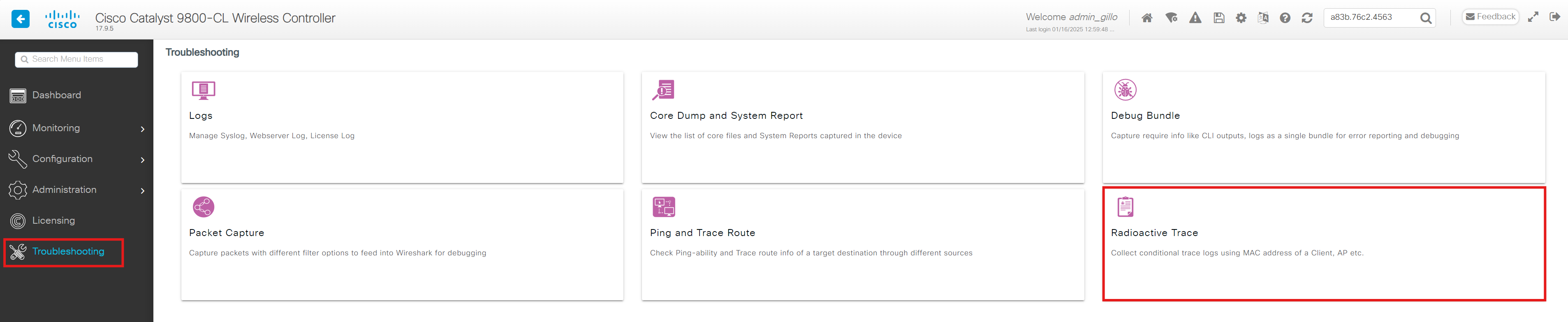
Go to Troubleshooting > Radioactive Trace
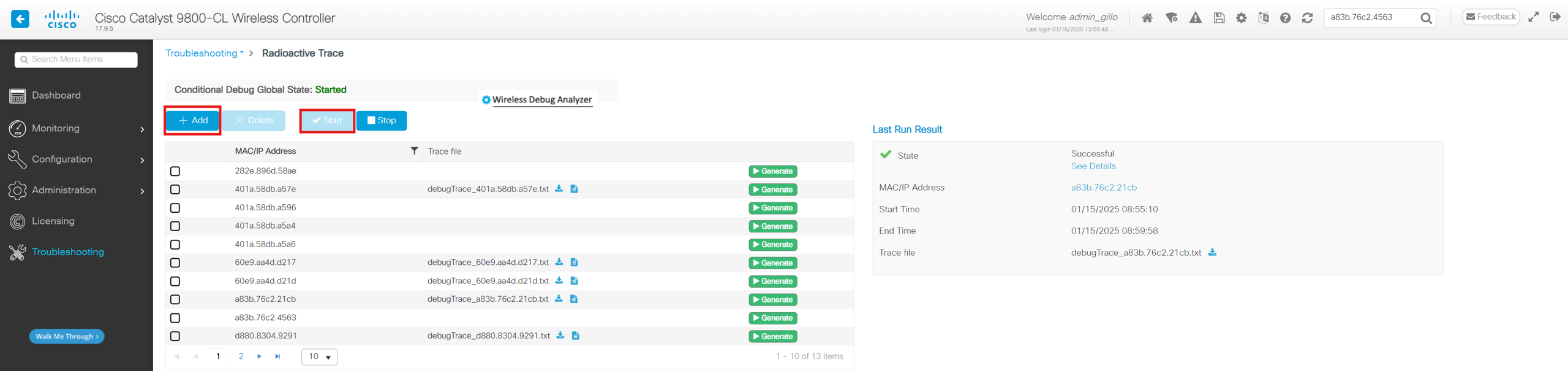
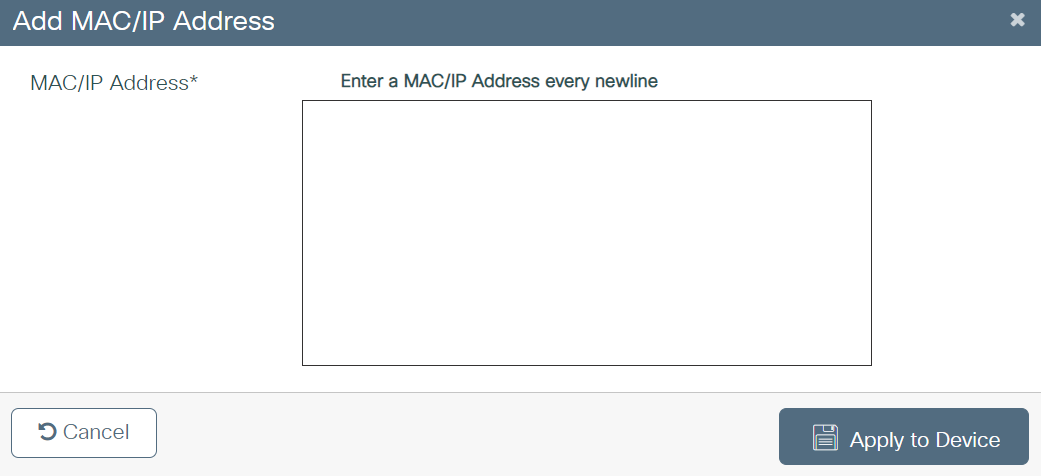
Click on Add and add every MAC address you need to monitor on a new line in the text field of the pop-up. Click on Apply to Device and then on the Start button on the top op the table.
Generate RA (RadioActive) Traces report for a client
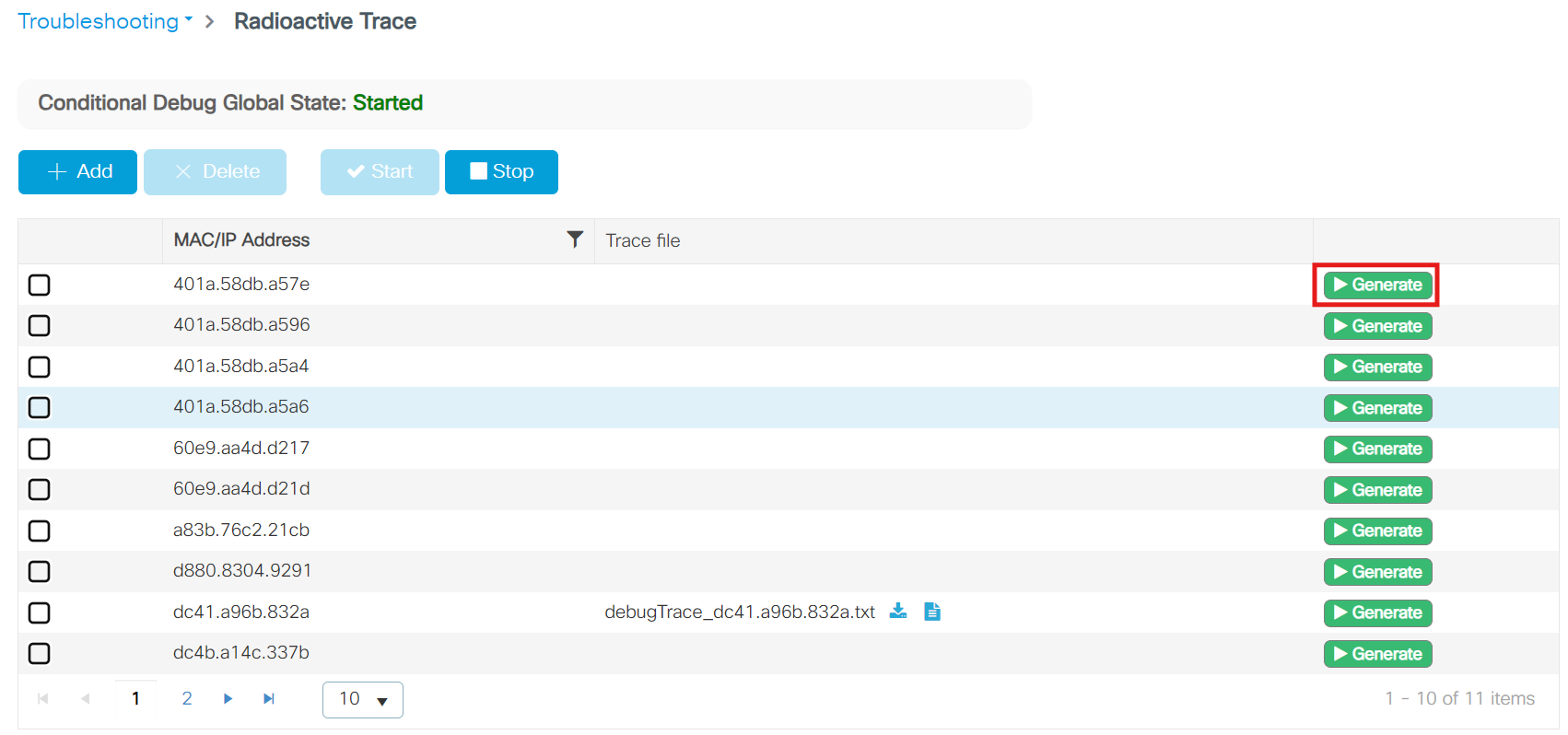
Go to Troubleshooting > Radioactive Trace, choose the MAC address of the client you need the report from. Click on Generate.
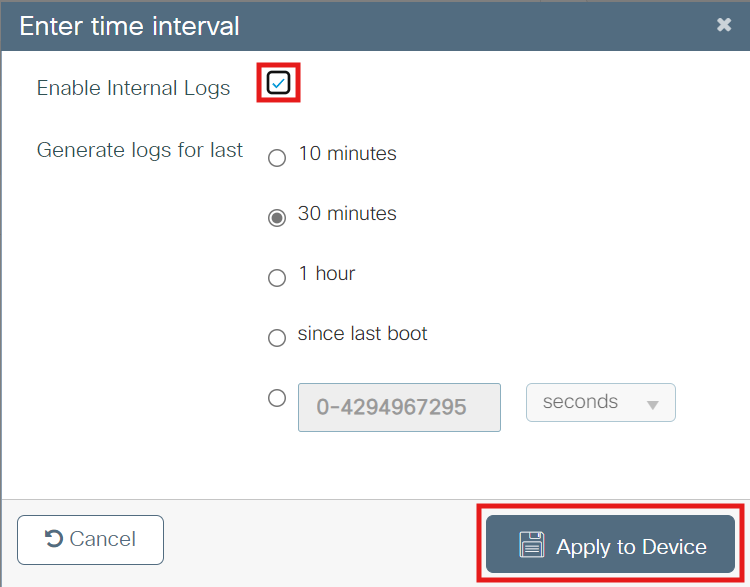
Check the Enable Internal Logs checkbox and choose the time period you need the report from. After that, click Apply to Device.
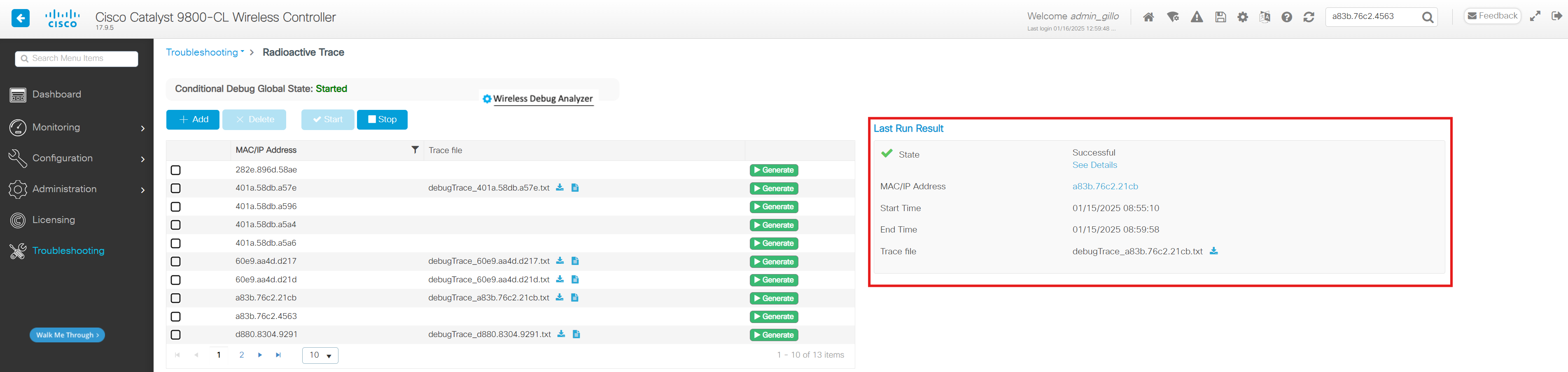
The logs are now being generated and you get some info on the right side of the table like you see in the screenshot underneath.
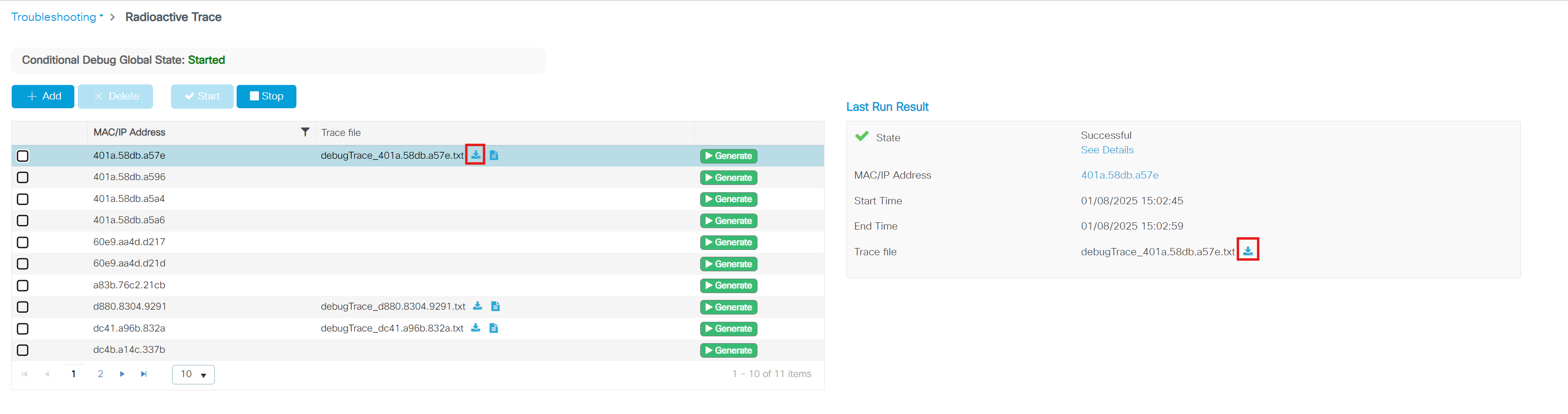
Download the RA (RadioActive) Traces
Click on the download icon next to the generated report filename.
Exclude Client MAC
CLI
conf t
 [no] wireless exclusionlist <MAC address> <description, max 32 characters>
end
GUI
Go to Monitoring > Wireless > Clients > Excluded Clients
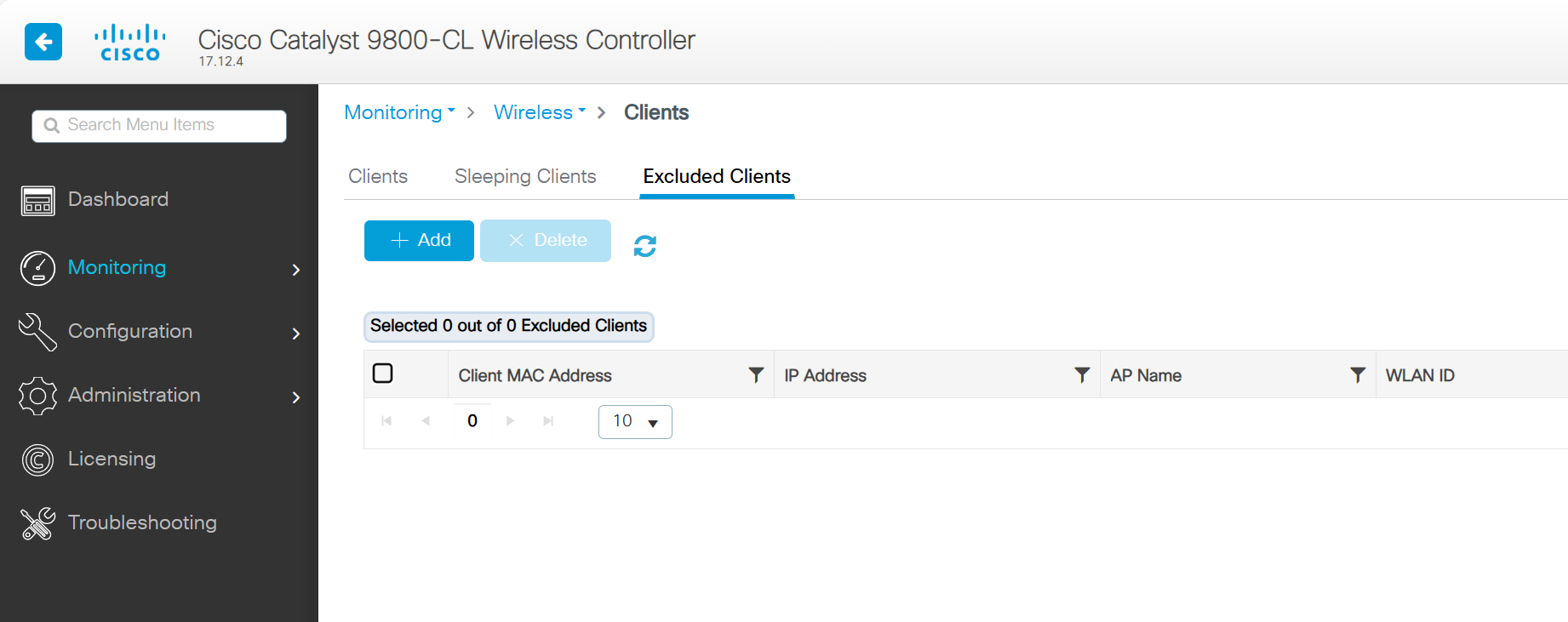
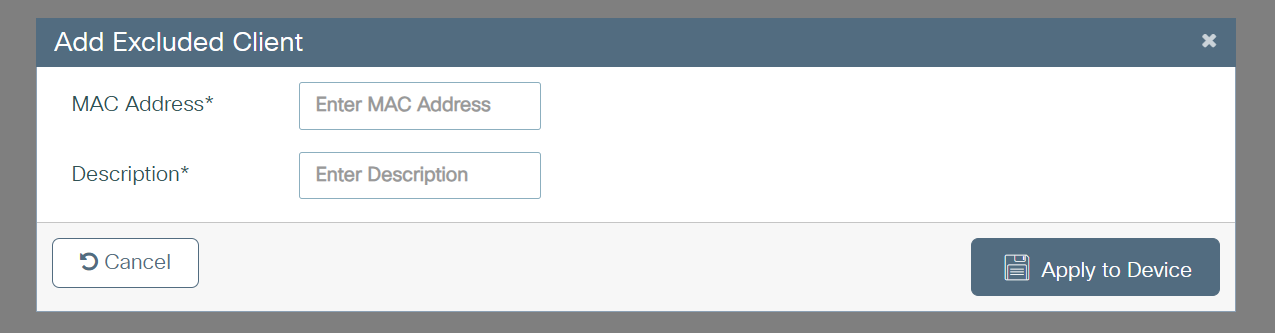
Click on Add and enter the MAC Address and Description. After that click Apply to Device
Access Points
AP config
CLI
show ap name <AP name> config general
GUI
Reboot AP
CLI
ap name <AP name> reset
GUI
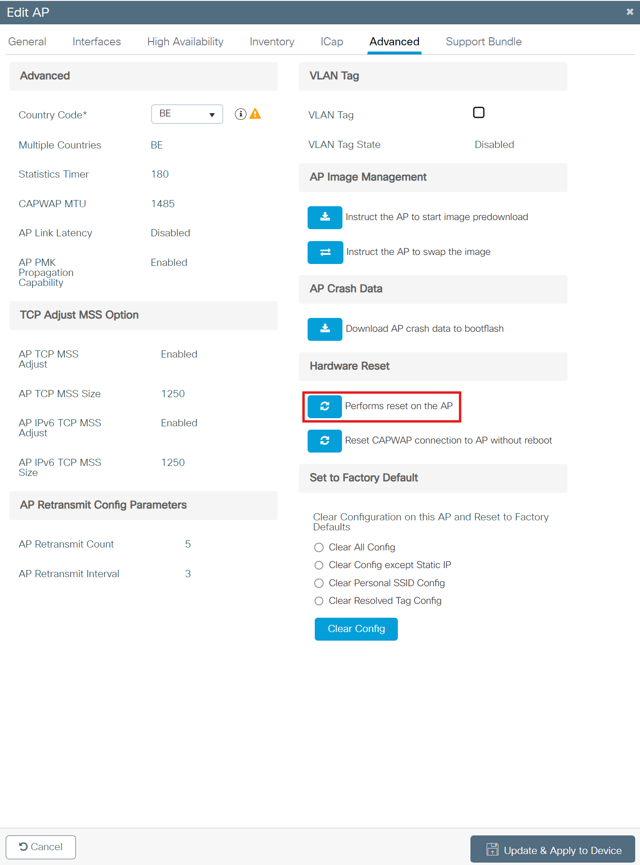
Go to Configuration > Wireless > Access Points > All Access Points and select the access point you want to reboot.
Click on Performs reset on the AP and Update & Apply to Device
Show AP tags
CLI
ap name <AP name> tag info
ap name <AP name> tag detail
GUI
Change AP tags
CLI
conf[igure] term[inal]
 ap <eth mac>
  policy-tag <policy-tag name>
  rf-tag <rf-tag name>
  site-tag <site-tag name>
end
GUI
Change AP primary controller
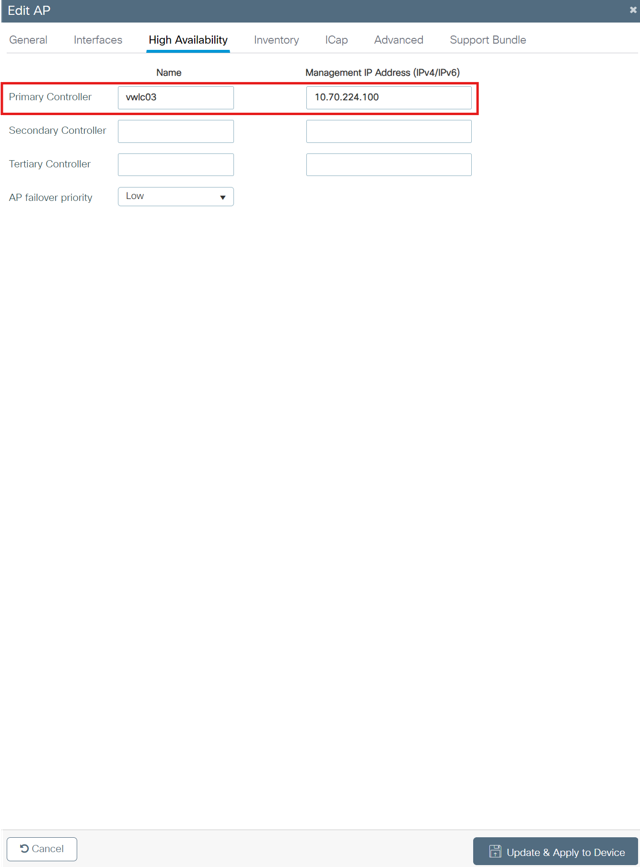
Only needed if you want to statically set the controller IP for an AP
CLI
ap name <AP name> controller primary <controller name> <controller IP>
ap name <AP name> reset                                                     ! AP needs to be restarted after changing primary controller
GUI
Go to Configuration > Wireless > Access Points > All Access Points and fill out the name and management IP for the new controller.
After that, click Update & Apply to Device and reboot the AP. (This setting only takes place after a reboot or the association timer ended with the current controller)
Change AP name
CLI
ap name <current AP name> name <new AP name>
GUI
AP LED
CLI
Show status
show ap name <AP name> config general | i LED
Change LED Status
ap name <AP name> [no] led
Flash LED
ap name <AP name> led flash start duration <seconds 0-3600>
ap name <AP name> led flash stop
Brightness LED
ap name <AP name> led-brightness-level <level 1-8>
GUI
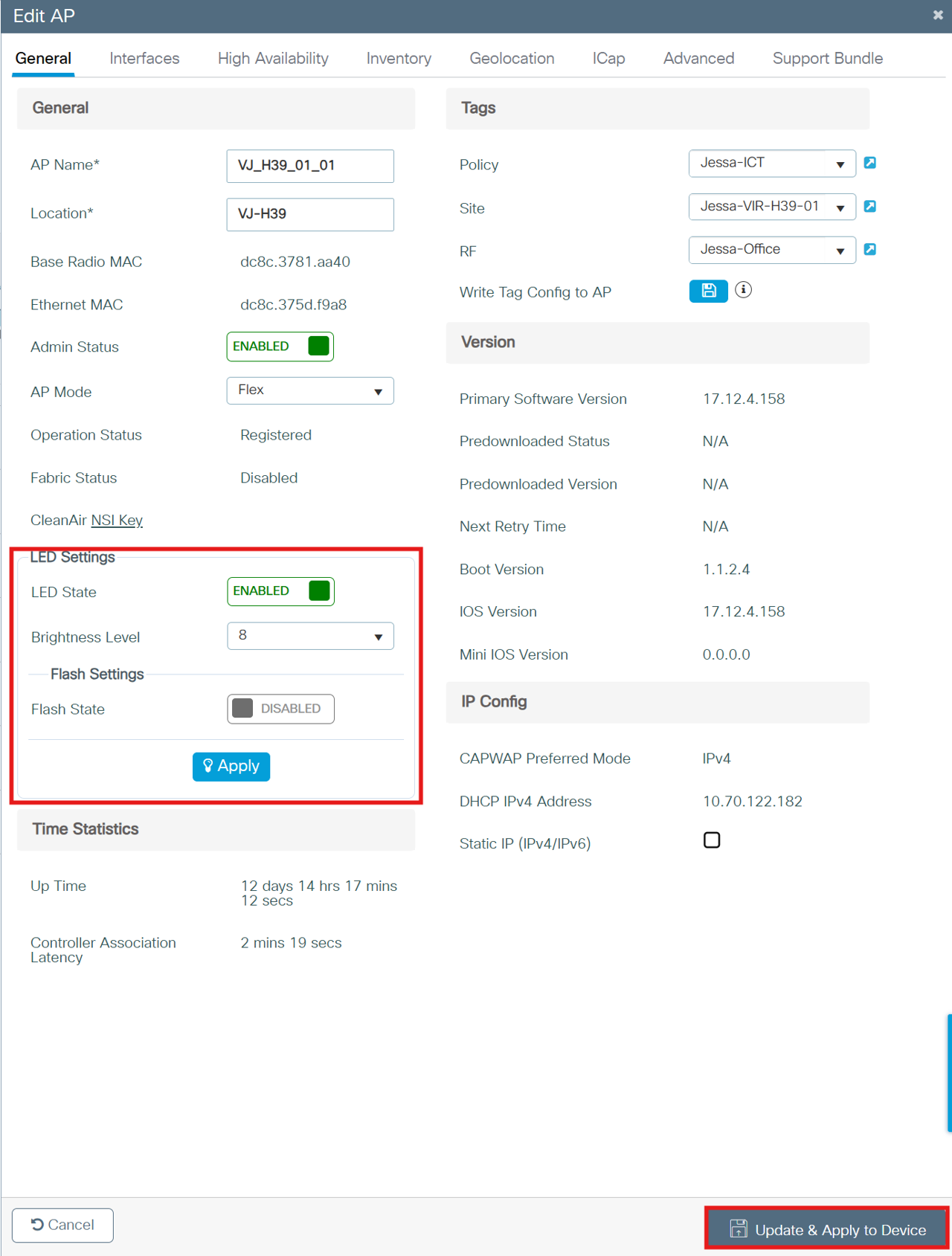
Configure > Access Points > All Access Points Filter Hier op de AP naam die je wilt aanpassen.
Show AP Image
CLI
show ap name <AP name> image
GUI
Show AP CDP neighbours
CLI
show ap name <AP name> cdp neighbors
GUI
RLAN
CLI
show ap name <AP name> lan port summary
GUI